The schecule will allow you to manage you lifting plan. You can manage everything from this treeview : project, cranes,area, tasks, elemets. to edit something you can right click on it
[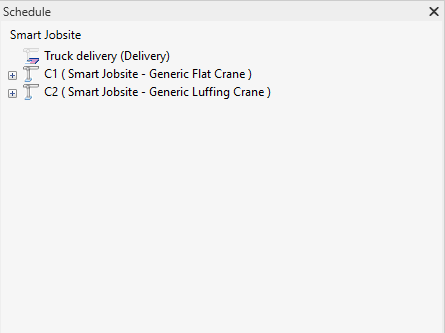](https://bookstack.smartjobsite.com/uploads/images/gallery/2020-12/image-1606866459695.png)On the schedule you can expand cranes to see tasks and tasks to see elements
The schecule date will be automatically calculated with the data you setup such has crane installation date, load chart, cranes engines properties, ...
On the schedule you can see if some tasks areover capacity or not reachable
[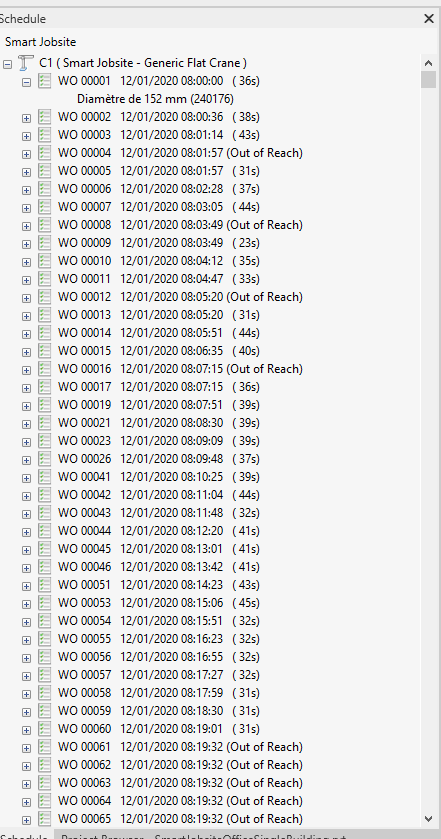](https://bookstack.smartjobsite.com/uploads/images/gallery/2020-12/image-1606866550219.png)You can use drag and drop to manage you lifting plan
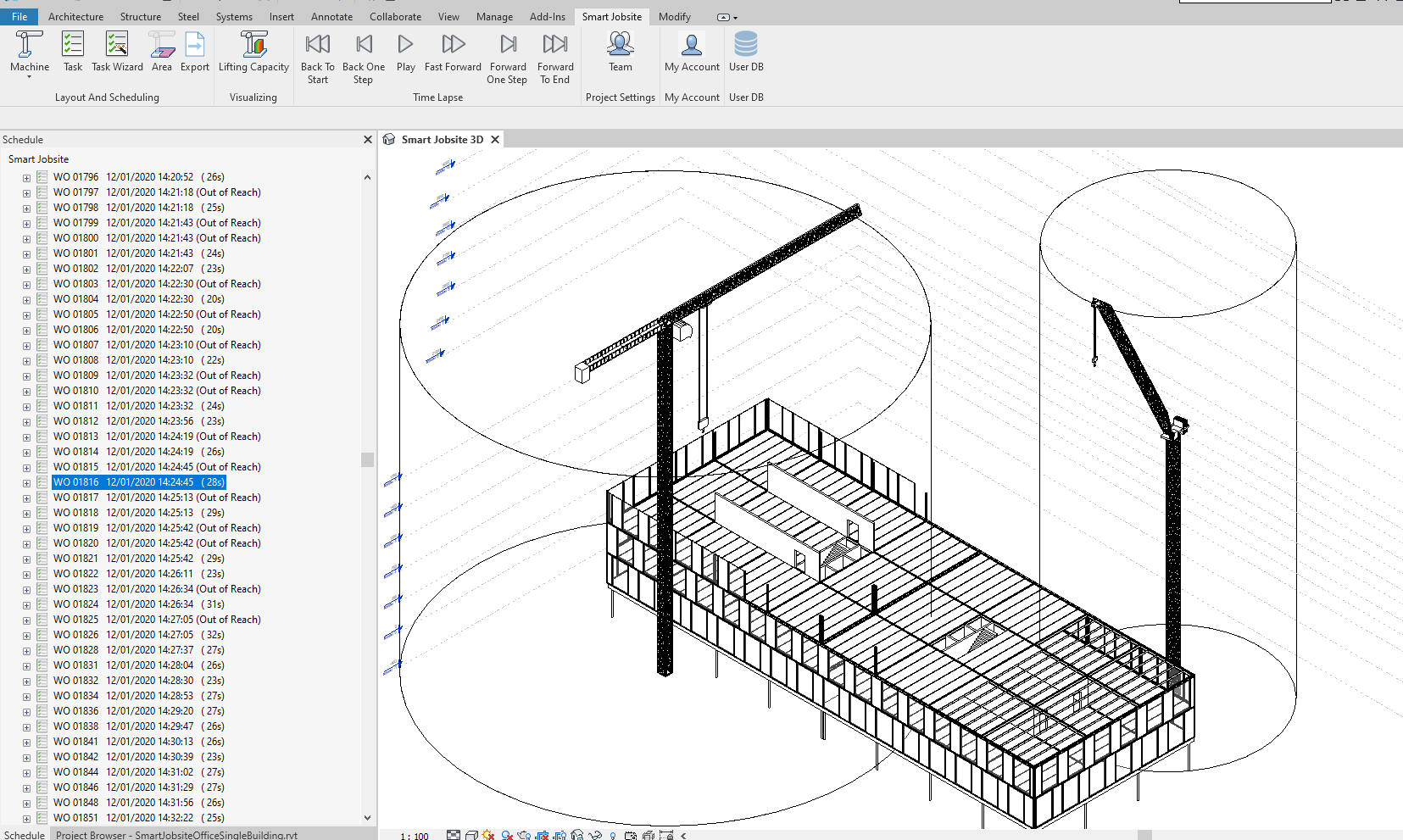
[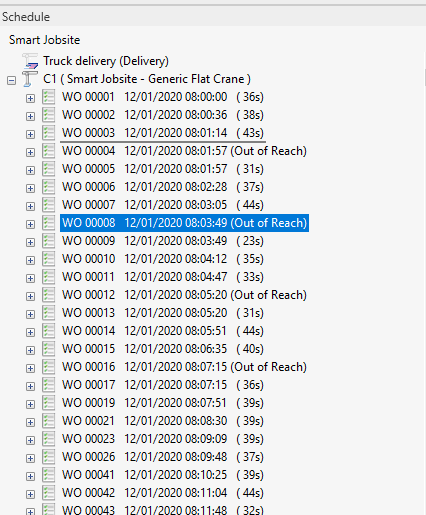](https://bookstack.smartjobsite.com/uploads/images/gallery/2020-12/image-1606866606693.png)You can see the buildingprogress by clicking on a task
[](https://bookstack.smartjobsite.com/uploads/images/gallery/2020-12/image-1606866650938.png)